

 HOME CONTACT SUPPORT SENSORYTEST.COM
 | |||
|
|
HOME CONTACT SUPPORT SENSORYTEST.COM |
|
Sensory testing professional's favorite virtual desktop. Say hello to SIMS Cloud Systems. From any device, any laptop, any iPad and even your cell phone. Log in from anywhere anytime. Inquire today. 
|
Mobile devices real test example Point your cell phone camera Easy for your respondents 
Link |
 VIEW REPORTS
 |
QUESTION CHOICES |
TEST CHOICES |
View More Question Type Choices |
| TIME DELAY
This webpage shows simple Time Delays in Questionnaires. Also see Time Delay Also see Time Interval Intensity Also see Time Intensity Continuous Also see Time TDS Temporal Dominance of Sensations Also see Time Counter Seconds Time Delay Example - Ballot Setup 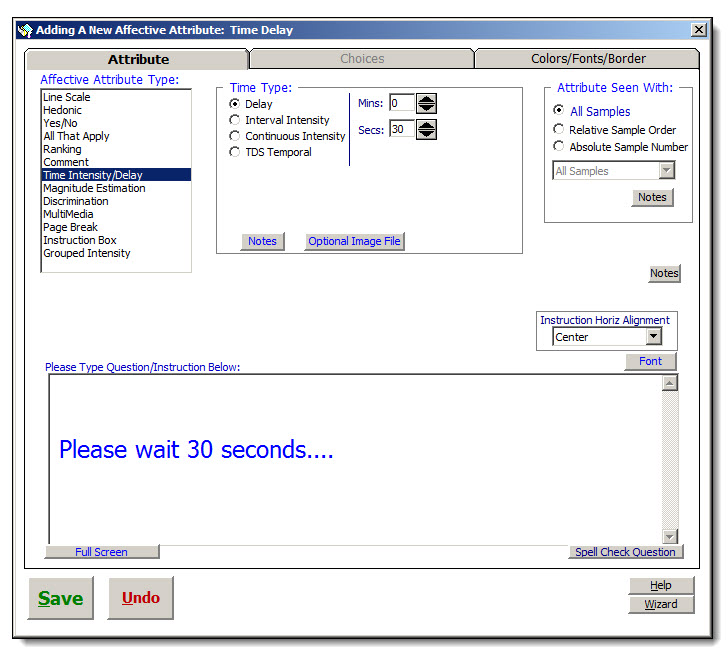
Time Delay Example - Ballot Example 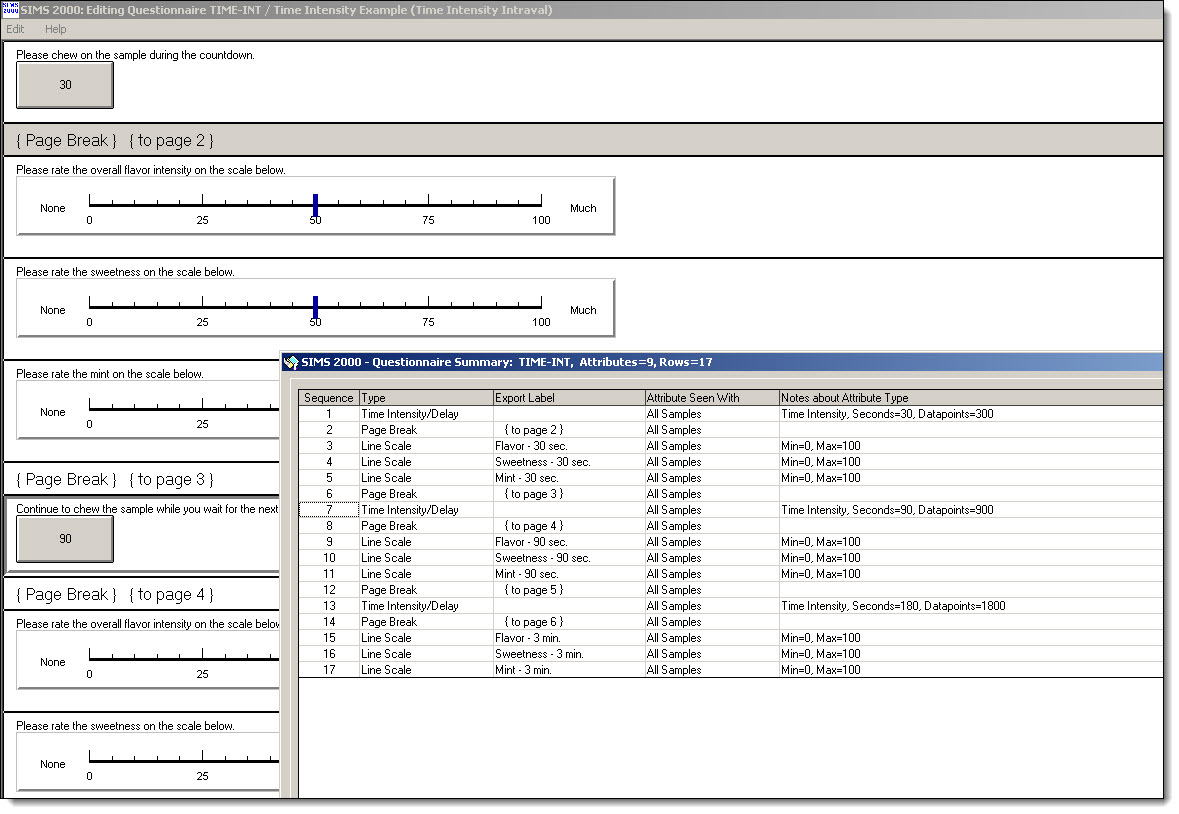
|
   ***   Notes on Time Delay / Time Interval Intensity   ***
   ---------------------------------------------------

   Time Delay
   ----------
       This is the most common 'Time' type used in questionnaires.
       A simple specific timed delay, you select exact delay duration, panelist pauses and waits.
       Time counter begins when panelist comes to time delay screen.
         Said another way:  No matter how fast the panelist got to time delay screen,
                            panelist will wait for your selected exact delay duration.
       The Ballot navigation bar and sample blinding code and count is invisible during this delay/countdown.
       Upon time delay completion, panelist is automatically taken to next page of questionnaire.

       This is the most common used time delay type used in Questionnaires.


   Interval Time Intensity
   -----------------------
       Time counter begins at onset of the current sample presentation, ballot page 1.
       A specific and flexible timed delay measured from the onset of the current sample presentation.
       Panelist pauses and waits for specific time to elapse measured from the onset of the current sample presentation
         Said another way:  No matter how fast the panelist got to the time delay screen,
                            the panelist will wait until your selected exact delay duration
                            has transpired since the onset of the current sample presentation.
                            All Panelists are forced to proceed thru questionnaire in time sync.
       The Ballot navigation bar and sample blinding code and count is invisible during this delay/countdown.
       Upon time delay completion, panelist is automatically taken to next page of questionnaire.

       Data/Graphs  -  See SIMS Main Menu | Analysis | Interval Time Intensity


   Optional Image File  (above two Time Types only)
   ------------------------------------------------
     An Image file (jpg, bmp, or gif) may be optionally displayed as part of the Instruction Text.
     SIMS  looks for a TAGGED indicator of your desired Image File in the body of the text.
     Tag Syntax : <IMG [BORDER] SRC=path\filename.ext>
            Example : <IMG SRC=S:\Server\Images\MyImage.jpg>
            Example : <IMG SRC=\\Server\Share\Images\MyImage.jpg>
            Example : <IMG BORDER SRC=C:\SIMS2000\Images\MyImage.jpg>
            Example : <IMG BORDER SRC=*:\Program Files\Images\MyImage.jpg>
     You may use the Optional Image Button to automatically write the required tag for your image file.
     Only one Image file is supported for a time delay question.
     Image will always appear after your text in the Question/Instruction.
     Image indent from left edge by using spaces in front of the Tag.
     Note: Please be sure that your panelists PCs can see the Image File and location on
           Network.  Your C: Drive is Not usually visible to Panelist PCs.
